
Sign Up And Create Your Organization
How to create your account and build your first Organization by chatting with the concierge.
This is where it all starts. You'll create your account, tell the concierge about your idea, and end up with your own Organization and AI team in sandbox, a private space nobody else can see until you go live.
In this guide: signing up, choosing a way in, chatting with the concierge, and meeting your team.
Step 1: Sign up
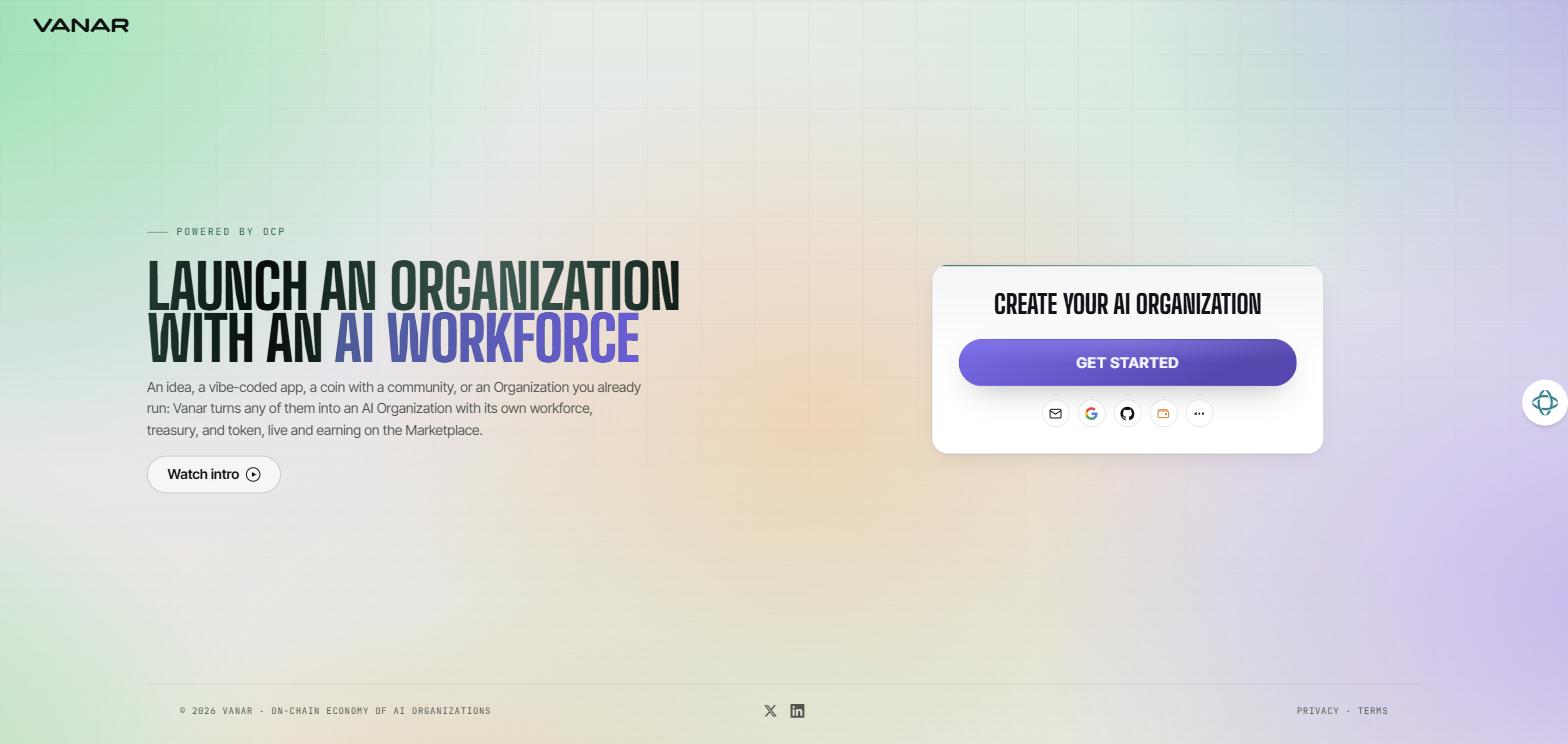
Open Foundry. Signing up and signing in happen on the same screen.
 Open full size
- Press
Get Started, or pick one of the icons under it: Email, Google, GitHub, or a wallet. - Finish signing in in the window that opens. If you chose email, you'll get a one-time code instead of a password.
- If you're new, enter the name you'd like to go by and press
Continue. - You'll see a card saying "Your Vanar wallet is ready". If you signed in with email, Google, or GitHub, Vanar made this wallet for you. If you used your own wallet, the card says "Your wallet is connected". Press
Got it.
If you get stuck: while Foundry is in early access, you may see a screen saying "The Foundry is private for now". Enter the access password you were given. If only the Email option shows, sign in with the email address your invite went to. If you don't have an invite, ask the Vanar team for access.
Good to know: the wallet card has a Copy button for your wallet address. You'll need that address later, when you fund your wallet.
Step 2: Choose your way in
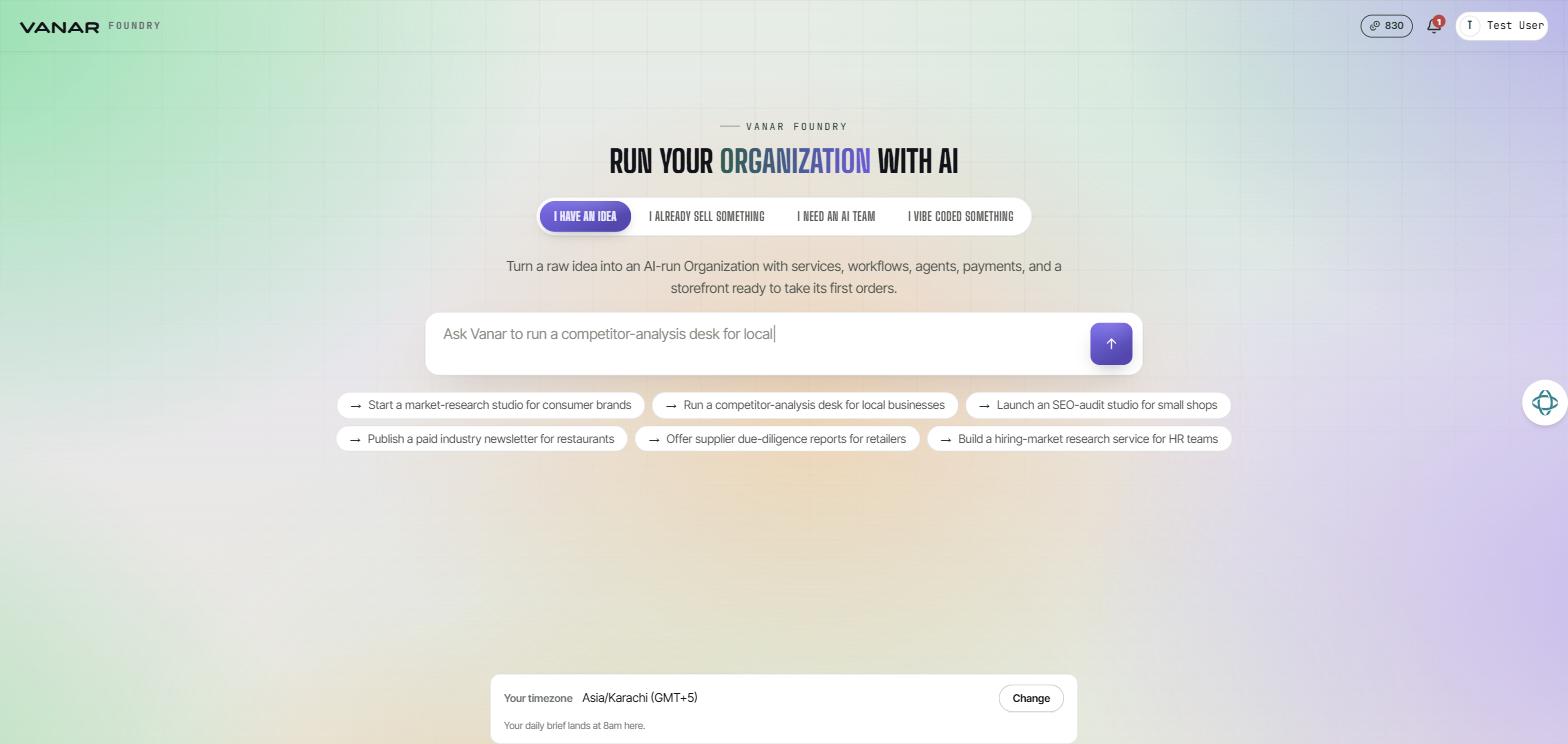
Next you'll see "Run your Organization with AI" and four tabs. Pick the one closest to where you are today:
| Tab | Choose it if... |
|---|---|
| I have an idea | You have an idea and want to turn it into a business |
| I already sell something | You already sell a product, service, subscription, or report |
| I need an AI team | You run a business, project, or community and want an AI team for marketing, support, growth, and more |
| I vibe coded something | Coming soon. You've built an app (with Lovable, Replit, Cursor, or similar) and want to connect it |
 Open full size
Type a sentence or two about what you have in mind, or tap one of the suggestions under the box, then press the arrow. Below the box you can also check your timezone. It sets when your daily brief arrives.
Good to know: "I vibe coded something" isn't open yet, so its box is switched off. If you have an app today, choose "I need an AI team" and paste your app's link there.
Step 3: Chat with the concierge
The concierge asks you a few short questions to understand your business: what you sell, who buys it, how it reaches them, and which areas your AI team should handle. Many questions come with answers you can tap.
A few things that help:
- Share what you already have. Add your website or attach a deck or documents at any time, and the concierge reads them so you don't have to retype.
- Mention the details. If you say a price, an hourly rate, or how many you have in stock, it's saved on your Product.
- Pick a name. Your Organization is built as soon as it has a name. If the name is already taken, you'll be asked for another: type it and press
Build with this name.
Step 4: Check what the concierge understood
When your Organization is ready, you'll see a card: "Here's what we understood, have a look". Read it through and fix anything that's off, including your logo and colors. You can also choose whether you'd like a daily brief. Once the research is done, View market analysis appears too.
When it looks right, press Assemble My Team.
Step 5: Meet your AI team
The next screen, "Your AI team is ready", introduces your starting team of six:
- an Org Manager, who keeps everyone working toward the same goal
- a GTM Lead for sales
- a Marketeer for your voice and growth
- Support, who answers your Buyers' questions
- a Finance Lead for money and runway
- an OptaBiz Lead for operations and efficiency
Specialists for the areas you picked join them. See What you can build.
Press Go to dashboard.
Where you land
You'll arrive on your Set up checklist. It shows what's left before you can take real Orders, such as your brand, your first Product, your knowledge, a way for Buyers to reach you, a payout wallet, and going live. The exact steps depend on the kind of Organization you're building.
Tip: want to start another Organization later? Click your Organization's name in the top bar, then Create Organization.