
Dashboard Operations
How to find your way around the dashboard and keep your Organization running day to day.
Once your Organization is set up, the dashboard is where you'll spend your time. This guide shows you around and suggests a simple routine.
In this guide: your home page, the menu, asking your team for help, credits, and a daily routine.
Your home page: Today
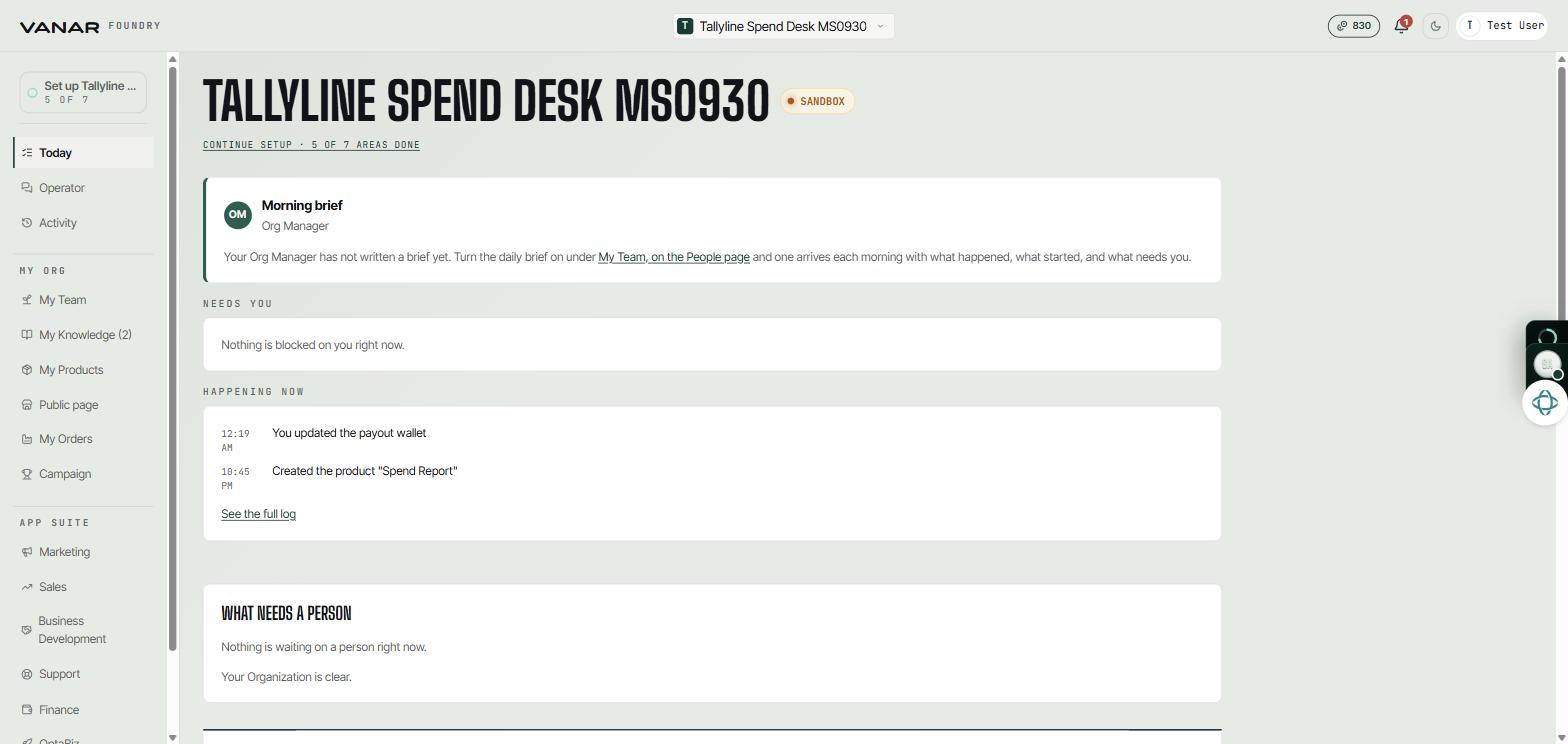
Once setup is finished, Today is your home page. Until then, Foundry opens on your Set up checklist. From top to bottom, Today shows:
- Morning brief: a short daily summary from your Org Manager of what happened, what started, and what needs you. Turn it on from
My Team, on the People page. - Needs you: anything waiting on your decision.
- Happening now: what your team is working on.
See the full logopens the complete history. - What needs a person: tasks only a human can do.
- Priorities: what you want your team focused on. Type one into "Add a priority" and press
Add.
 Open full size
Finding your way around
The menu on the left has four parts:
| Part | What's in it |
|---|---|
| At the top | Today, Operator (the AI teammate who runs your Organization; ask it anything), Activity (everything your team has done), and your Set up checklist until it's finished |
| My Org | My Team, My Knowledge, My Products, Public page, and My Orders. Bookings, Inventory, and Campaign appear if your Organization uses them. |
| App suite | The apps your team works in: Marketing, Sales, Business Development, Support, Finance, and OptaBiz. See Your AI apps. |
| Settings | Your brand, billing, channels, wallet, rules, and these guides. See Settings and wallets. |
Ask your team for help
You can give work to any teammate. Open My Team, choose Agents, and open the teammate who owns that area. You can also ask Operator.
Your team can do real things for you, not just answer questions. For example, on a rentals Organization a teammate can check your bookings or block out dates for you, and any teammate can take you straight to the right page.
A few things you could ask:
Give me a plan to find my first ten Buyers this week.
Turn my latest report into five short social posts.
Look at my last five Orders and suggest one change that would bring people back.
Credits
Your team's work uses credits. Check your balance in Settings, Billing. It shows Healthy, Running low, or Out of credits. Credits are shared across all your Organizations.
To buy more, and to see every package and price, go to Credits and pricing.
Work that repeats
If a Product should be delivered on a schedule, such as a weekly report, set it up in the Product's Repeat delivery settings in the Workbench. Settings, Schedules lists everything that runs on a timer. Open one to see what ran and what failed, or pause it.
Bookings and stock
If you rent things out, Bookings shows each item with its photos, rates, and calendar. You can block dates for maintenance, and each confirmed booking arrives here and in your email.
When a booking is over, close it out from Bookings. Mark delivered opens once the session has ended (for a whole-day hire, at the end of its last day). No-show opens 15 minutes after the start. For a rental, press Confirm return when the item comes back. Until a button opens, it tells you when it will.
If you sell from stock, Inventory shows your shelf item by item. When something sells, it's gone from the shelf.
A simple daily routine
- Open
Todayand clear anything under "Needs you". - Check
My Ordersfor new Orders and anything to deliver. See Your first Order and getting paid. - Read your morning brief and add a priority if your focus has changed.
- Ask one teammate for something that moves your business forward.
Once a week, it's worth checking what your Buyers ask for most and whether that could become a new Product.