
Products, Pricing, And Publishing
How to create a Product, set it up, test it, and publish it.
A Product is anything Buyers can order from you: a report your AI team writes, a session people book with you, a studio you rent out, or items you sell from stock. This guide takes you from an idea to a published Product.
In this guide: creating a Product, setting it up in the Workbench, running a test, and publishing.
Step 1: Describe your Product
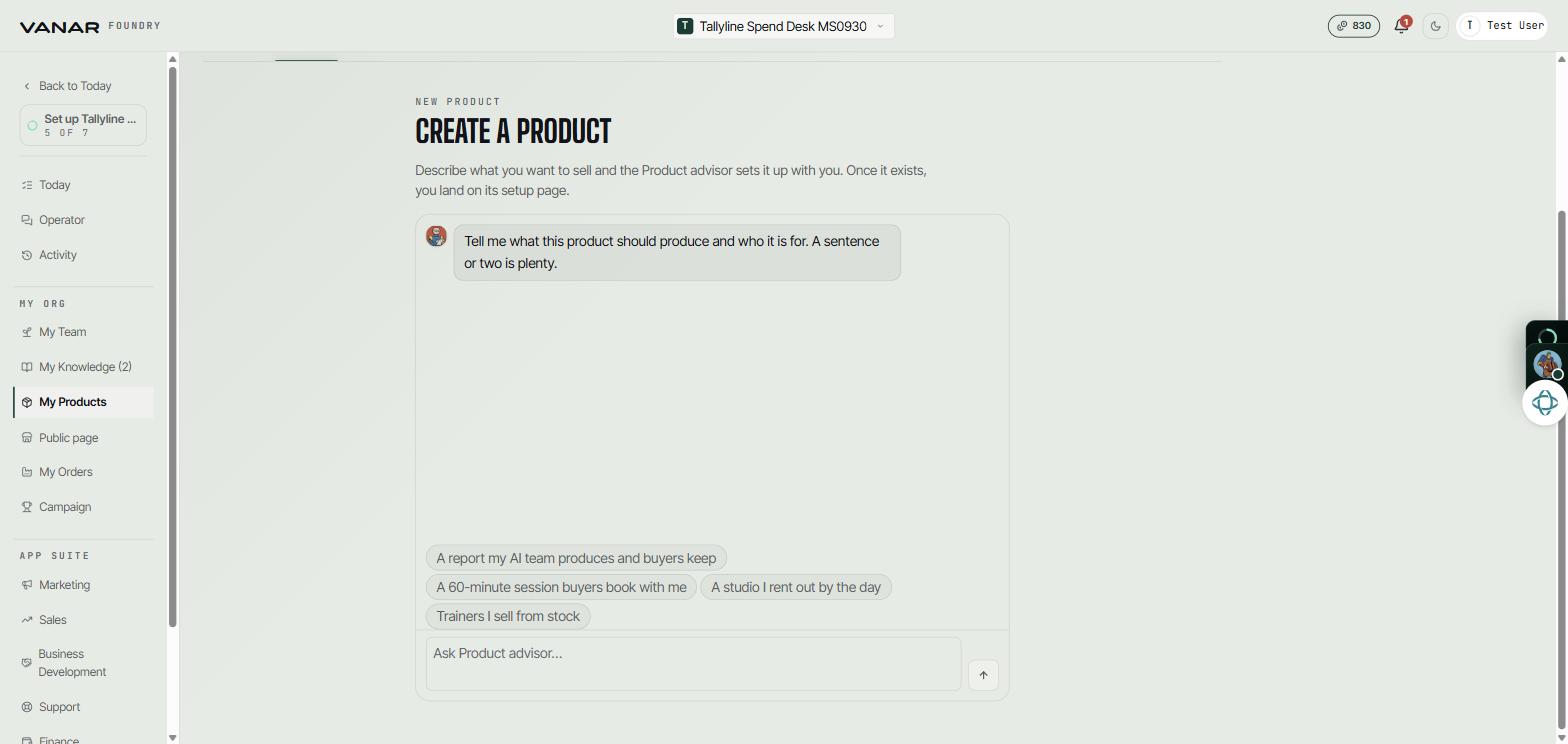
Open My Products and choose the Create tab. You'll chat with the Product advisor rather than fill in a form.
Tell it what the Product should produce and who it's for. A sentence or two is plenty. Or tap a suggestion to start, such as "A report my AI team produces and buyers keep" or "A 60-minute session buyers book with me".
 Open full size
The advisor asks about anything it still needs, such as what Buyers should send you with their order, the price, and how the Product is delivered. When your Product is ready, you're taken to its Workbench, and the advisor comes along to keep helping.
Here's an example of a good first message:
A weekly report for small online shops that compares their prices with their top three competitors, with three suggestions to act on.
If the first draft misses the mark, just say what to change:
Make it monthly instead, and add a short summary at the top that the owner can read in a minute.
Step 2: Finish setting it up in the Workbench
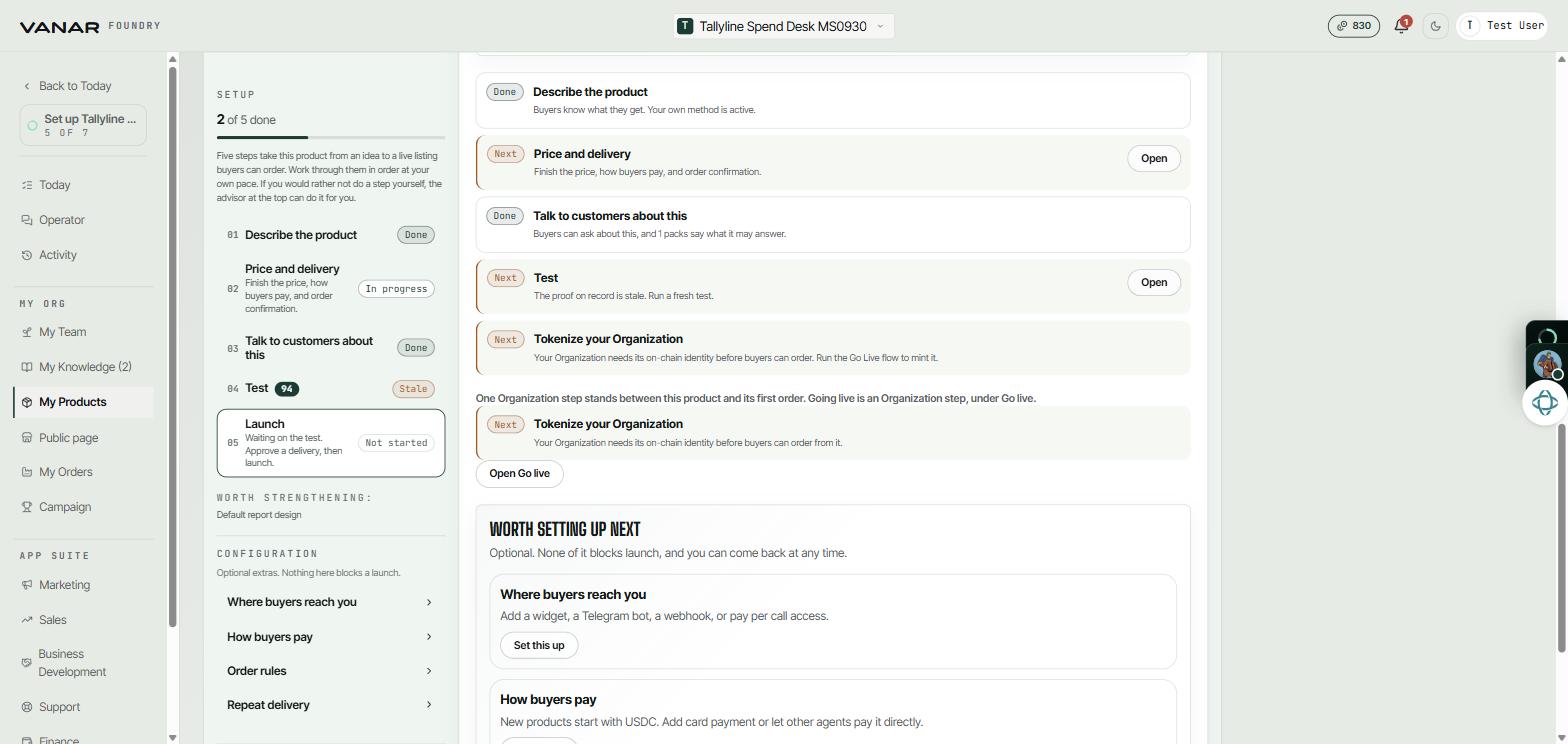
The Workbench walks you through five steps. Their names change a little depending on what you sell:
| Step | For a report | For a service | For a rental | For items in stock |
|---|---|---|---|---|
| 1 | Describe the product | Describe the service | Describe the rental | Describe the product |
| 2 | Price and delivery | Price and booking | Price and day rates (or hourly rates) | Price per unit |
| 3 | Talk to customers about this | Talk to customers about this | Talk to customers about this | Talk to customers about this |
| 4 | Test | Check what a buyer gets | Check what a buyer gets | Check the shelf |
| 5 | Launch | Launch | Launch | Put it on sale |
Beside the steps you'll find a few settings cards: Where buyers reach you, How buyers pay, Order rules, and Repeat delivery. For Products your AI team delivers, How it runs shows which teammates work on it and which skills they use.
Tip: your Product uses your Organization's brand by default. You can give it its own look if it needs one.
Good to know: for a report, you can teach your team your own written method. When you approve it, its section headings become the report's sections. If your method has more rules than a report can use (16 hard rules and 8 others), the page lists the ones left out.
Step 3: Test it
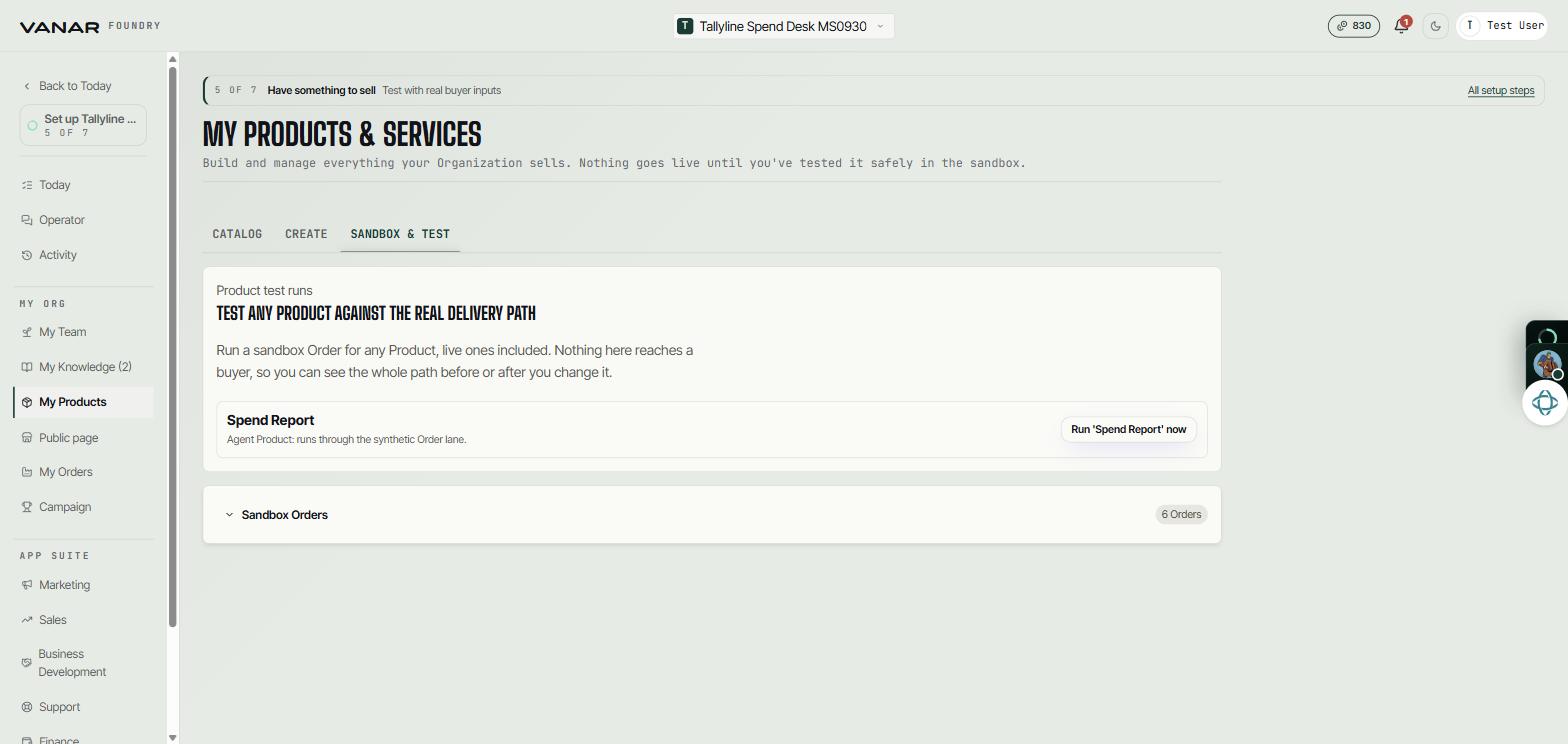
Before a Product goes out to Buyers, you'll want to see what they'd get. Open My Products and choose Sandbox & Test. A test goes through exactly the same steps as a real Order, but nobody else sees it.
 Open full size
- If your AI team delivers it: press
Run '<Product name>' now. Say what the test should show, or tap a suggestion, then pressStart test delivery. The test is ordered by a sample buyer, and your note leads the brief your team works from. When the result arrives, read it and accept it. - If you deliver it yourself: create a sandbox manual Order, open
To fulfill, and deliver it just as you would for a real Buyer. Or approve an example withApprove and use as proof. - Sessions, rentals, and items in stock don't need a test run. Being bookable or having stock is enough.
Good to know: a test produces real work, so it uses credits. If you change the Product afterwards, run a fresh test so it matches the latest version.
Step 4: Publish
Publishing comes after your Organization is live. While it's still in sandbox, the last step lists the Organization steps still standing between this Product and its first order: setting your payout wallet and tokenizing your Organization. Both happen on the Go live screen, and Open Go live takes you there.
 Open full size
Once those are done and every step is ticked off, press Publish this product on the last step.
Your Product needs a price, a way for Buyers to reach you, a way for them to pay, and a passed test. Products your AI team delivers also need their teammates, skills, and rules in place. The Workbench tells you if anything is missing.