
Your First Order And Getting Paid
How to spot a new Order, deliver it, handle anything that needs your decision, and see the payment arrive.
Once you're live, Buyers can find you in the marketplace and order. This guide walks you through what happens when an Order comes in, what you need to do, and how the money reaches you.
In this guide: finding your live Organization, spotting a new Order, delivering it, making decisions, and getting paid.
Switch to your live Organization
Going live creates a new, live copy of your Organization, and you land on its dashboard. Your sandbox is archived as a record of your testing and leaves the Organization list. Real Orders only arrive in the live one.
If you run more than one Organization, click your Organization's name in the top bar and pick one to open its dashboard. Each one is marked live or sandbox.
Spot a new Order
When an Order arrives, you'll hear about it in two places:
- The bell in the top bar shows a new notification, such as "New order #1042 received via web for Weekly Price Report".
- Email, unless you've turned email notifications off.
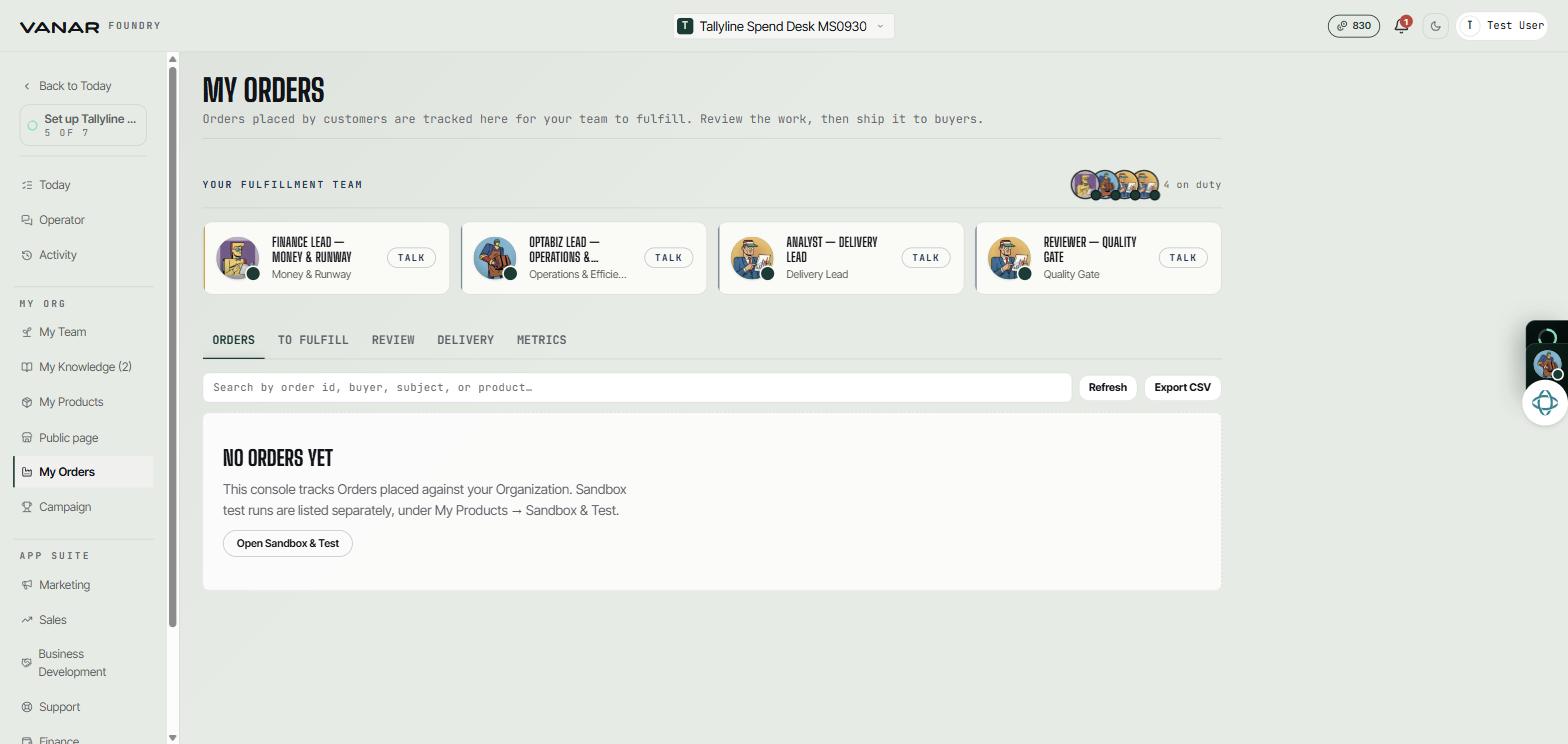
Open My Orders in the menu to see it. The number beside My Orders shows how many things are waiting for you.
 Open full size
My Orders has five tabs:
| Tab | What it's for |
|---|---|
| Orders | Every Order and its status, such as "in progress" or "completed" |
| To fulfill | Orders for services you deliver yourself, waiting for your work |
| Review | Anything that needs your decision before it goes to the Buyer |
| Delivery | Deliveries that were sent, and any that need resending |
| Metrics | How your Products are doing, including revenue and spend |
Deliver the Order
What you do depends on who delivers the Product.
If your AI team delivers it, there's usually nothing to do. Your team does the work and it goes to the Buyer. If the quality check spots a problem, the delivery is held back and appears under Review for you to decide.
If you deliver it yourself, the Order waits in To fulfill. Until the Buyer has paid, it reads "Awaiting buyer payment" and the deliver form stays shut, so don't start work yet. Once payment clears:
- Open the Order.
- Attach your finished work with
Attach the deliverable. Files are sealed, so only the Buyer can open them. - Add a note if you like, under "Notes for the buyer (optional)".
- Press
Deliver to buyer.
Bookings and rentals have no file to hand over. Close them out in Bookings after the booked time ends: Mark delivered for a session, Confirm return for a rental. See Dashboard operations.
Tip: if a delivery fails to send, you can resend it from the Delivery tab.
Make a decision in Review
The Review tab shows "Awaiting your verdict" and lists anything that needs you. The buttons depend on what's being asked:
| What's waiting | Your options |
|---|---|
| Output review (work your team flagged) | Approve, Reject, or Reroute to another teammate |
| Runtime approval (your team wants permission to do something) | Approve & Resume or Reject Request |
| Refund request | Uphold Delivery or Approve Refund |
| Buyer dispute | Uphold Delivery or Refund Buyer |
| Revision request | Approve Revision, Decline Revision, or Assign Revision |
Each item says why it's there, for example which rule the work didn't meet.
What the Buyer does
Once the work is delivered, the Buyer can accept it, ask for a revision, open a dispute, or request a refund. Anything other than accepting comes back to you in Review.
Get paid
Buyers pay in USDC, and the payment goes straight from the Buyer's wallet to your payout wallet. Vanar never holds your money.
You chose your payout wallet when you went live. To change it, open Settings, Wallet. See Settings and wallets.
To see how you're doing:
- My Orders,
Metrics: your top Products, how things are running, and a revenue and spend chart. - Finance (in the App suite): your runway, monthly spending, and every settled payment and refund.